
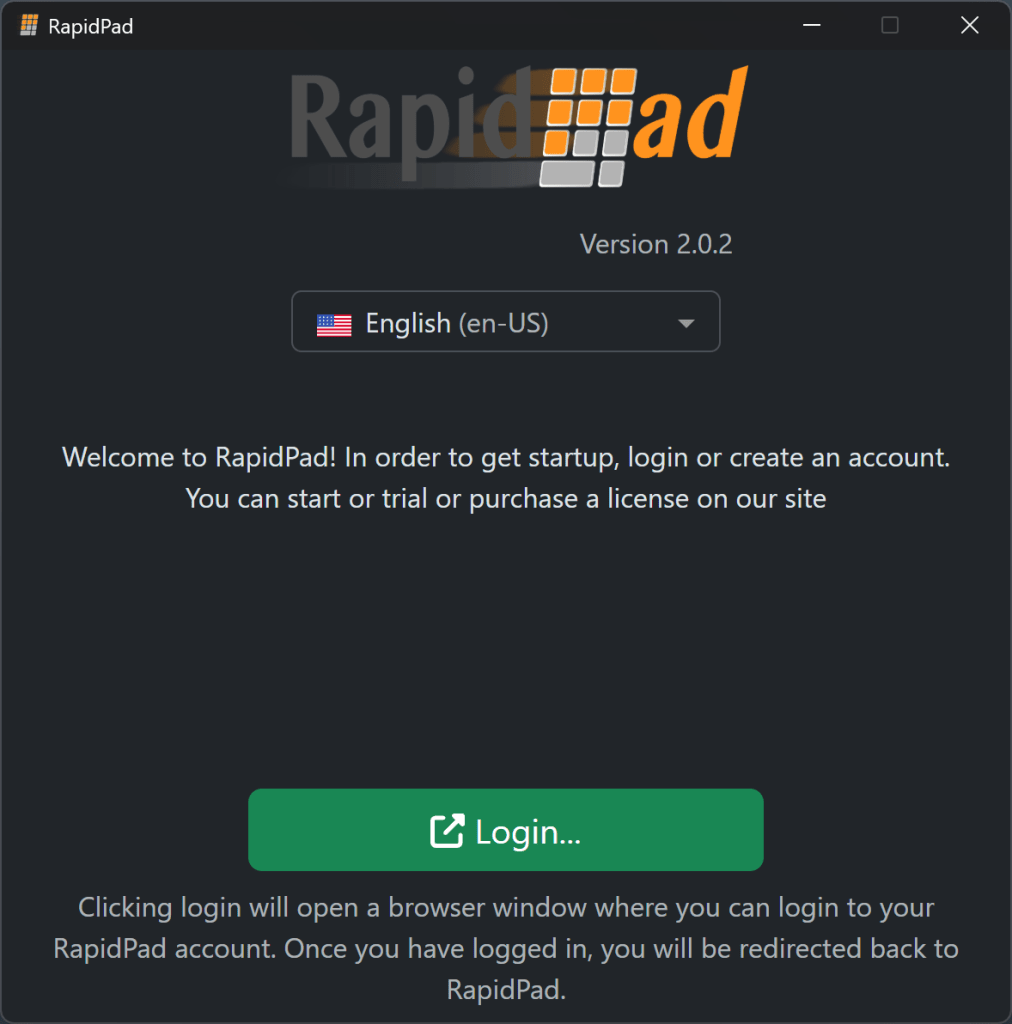
- When you first start the app you will be prompted to login. Click the Green Login button, and it will open a browser window where you can login. After logging in, if the browser window stays open, you can close it.
- Now the app will get your current license to use RapidPad. In the screenshot below, a trial of RapidPad has 29 days left. Click Start RapidPad

- Now you should see a list of keyboards \ keypads attached your machine. Tap on the device you would like to use with RapidPad. At this point you should have two devices listed.

- Click the X to close Now you should see a list of keyboards \ keypads attached your machine. At this point you should have two devices listed.
Tap on the device you would like to use with RapidPad. Then close the window.
Now you should be setup to use RapidPad!
RapidPad runs in the background. You can make changes to the Keypad shortcuts / Commands by opening RapidPad from the System Tray as shown below. Right click on the RapidPad icon and click Commands.

