
RapidPad is fully customizable. When RapidPad is running, it should normally just sit in the background, but you can customize it by opening it from the System Tray and clicking ‘Commands…’

The Commands Window will show the list of commands that are currently configured.
- On the left you can filter commands by the type of command that will be executed (i.e. AutoCAD or Revit commands).
- On the right is the list of commands visible based on the filters selected. You can select AutoCAD in the ‘Filter by type…’ drop-down and you will only see AutoCAD commands.

For each command in the list, the information shown from left-to-right is:
- The keys that need to be pressed on the keypad. This is called the trigger.
- The type of command that will be executed
- Then information about the command that will be executed. For AutoCAD commands this is what will be run using the AutoCAD command prompt.
To make changes to the Commands you can:
- Tap on an existing command in list to edit it.
- Tap the Blue + button on the bottom-right to create a new command.
Adding Commands
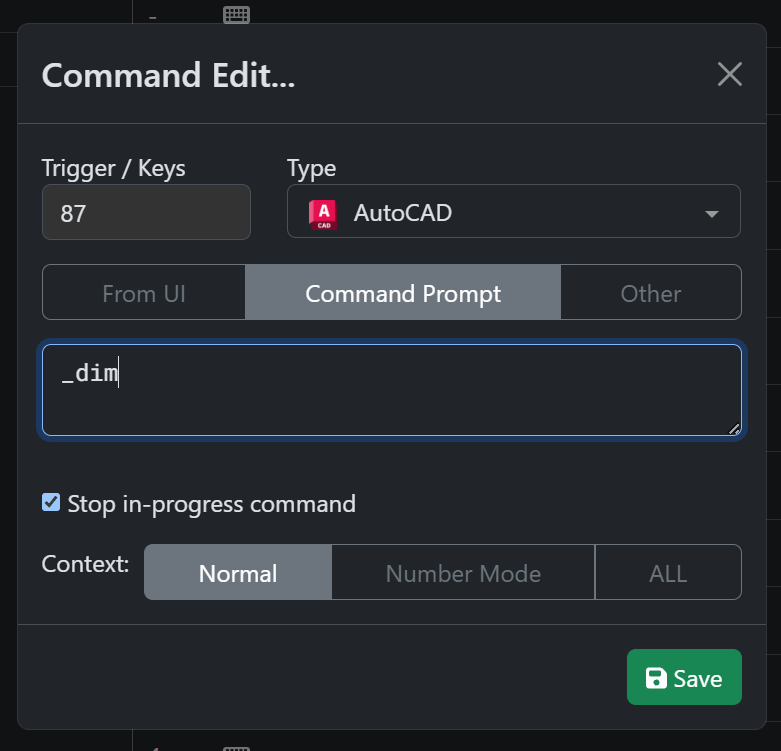
Tab the blue ‘+’ button on the bottom-right of the Commands window to add a command. You should see the Command edit form as shown below:
- Using your keypad, enter a 2 numbers to use as the Trigger. This is what you will use to execute the command. You should see keys pressed in the “Trigger / Keys” textbox.

- Now select the ‘Type’ of command. In this example, ‘AutoCAD’

- Enter what you want executed on the AutoCAD command prompt. In this example, the “Dimension” command will be run. If you are unsure about what to enter for this, you can tap on the desired command using the AutoCAD ribbon, then look at the Command prompt for the actual text of the command.
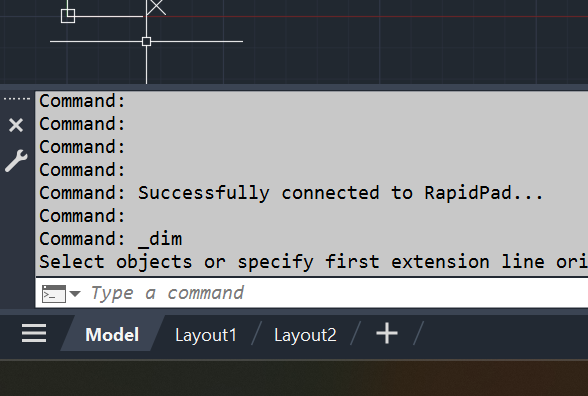
- Now click Save. Go back to AutoCAD and press the keys you used to configure the RapidPad command. You should see the desired command started in AutoCAD.